PRIVATE KEY
DOWNLOAD
PROCESS
PRIVATE KEY
DOWNLOAD
PROCESS
The Electroneum App and my.electroneum.com wallets are CLOSING

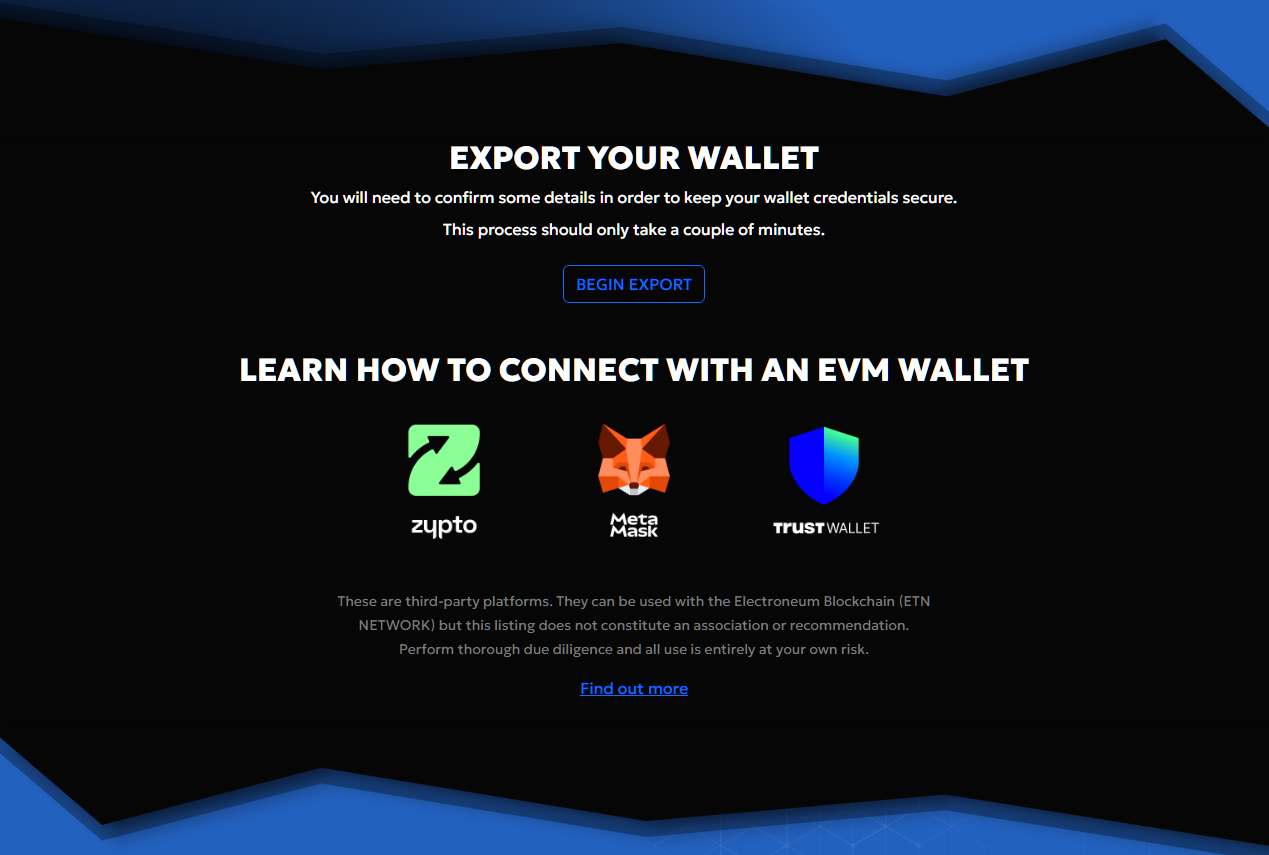
You will have received an email inviting you to download your private key, which is available here: https://my.electroneum.com/private-keys/process. Alternatively, you’ll see a button inviting you to complete this process in my.electroneum.com or the ETN app.
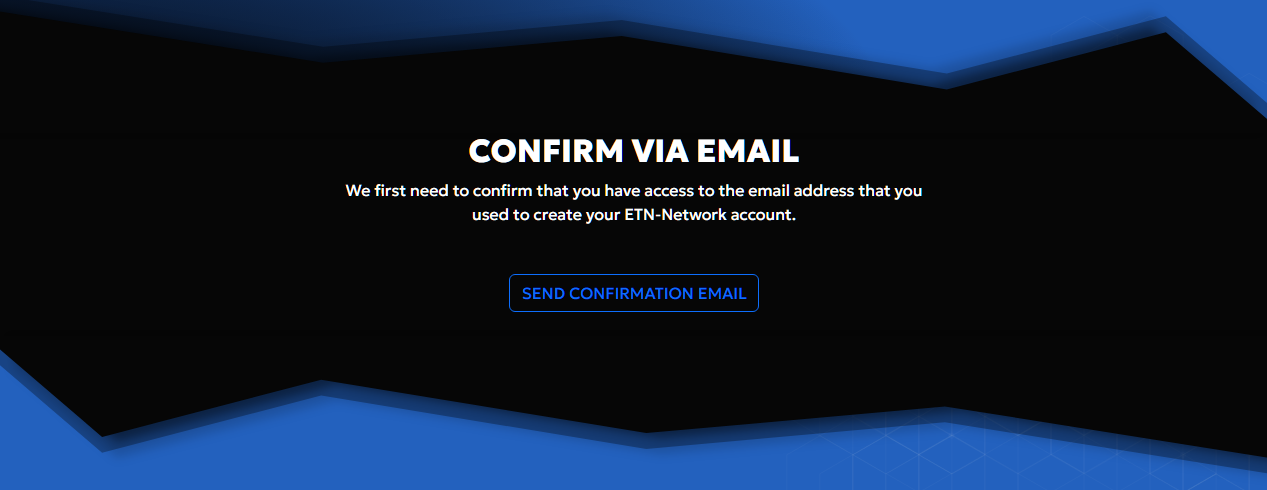
To help confirm that you are authorised to retrieve the private key for this account, you will need to confirm your intent via the email address that is associated with your account.
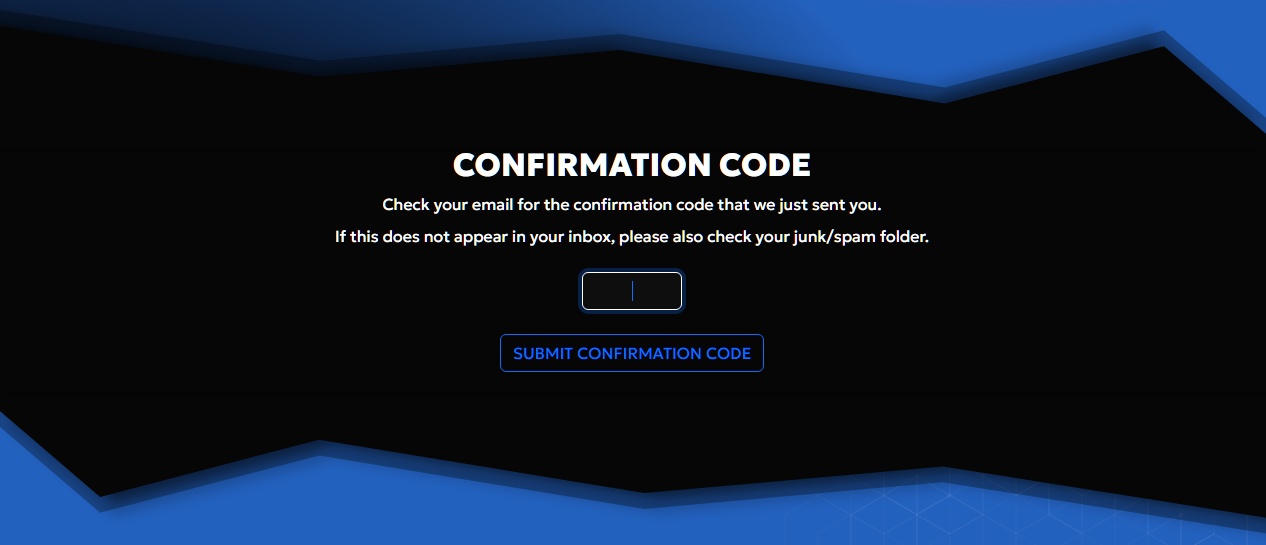
After clicking the SEND CONFIRMATION EMAIL button, an email will be sent which contains a confirmation code.
Add the confirmation code that you received and click the SUBMIT CONFIRMATION CODE button.
We may need to check your identity and may ask you to provide a selfie.
You will be able to use your camera or upload a file that contains your selfie.
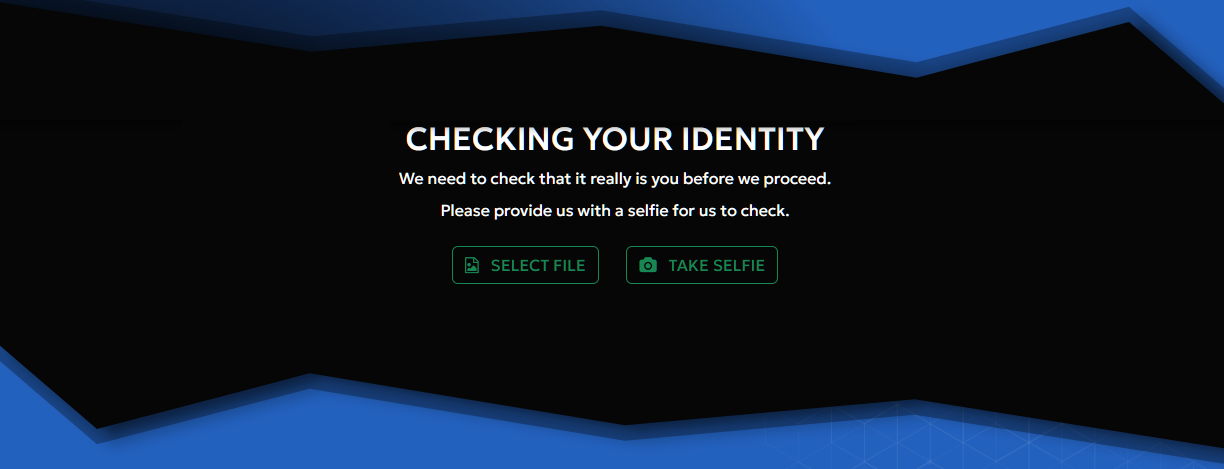
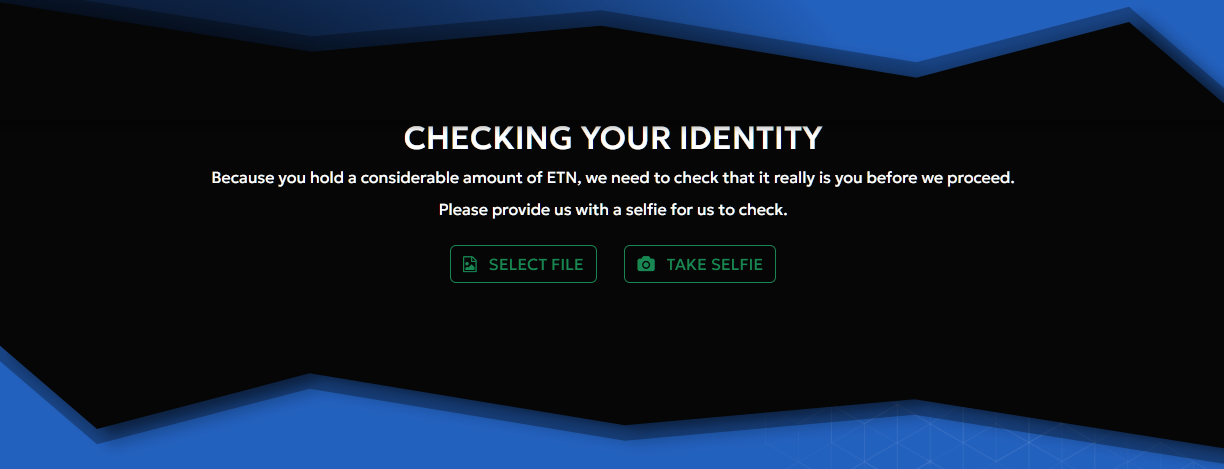
You will need to wait a short period of time for the identity check to complete. Once finished, you will be forwarded to the next step in the download process.
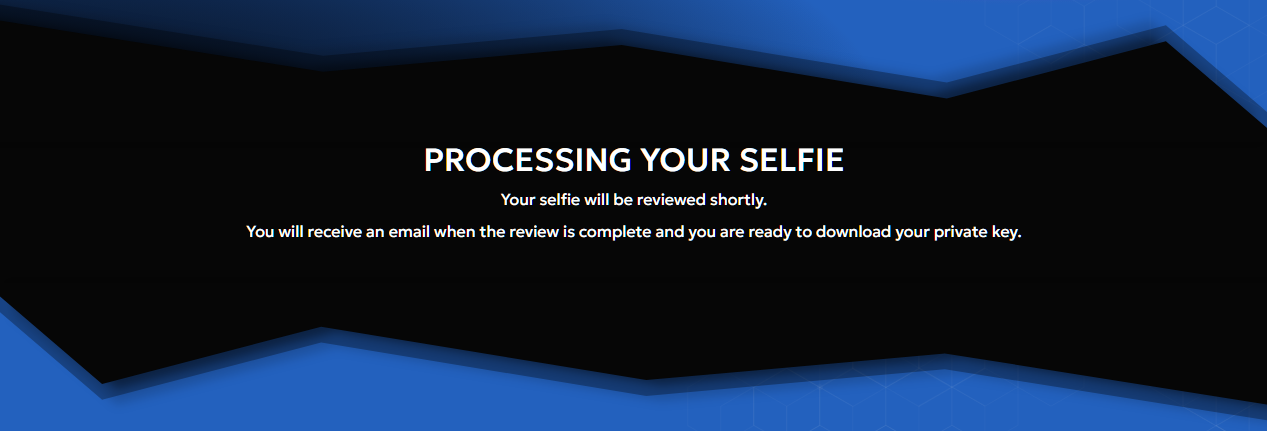
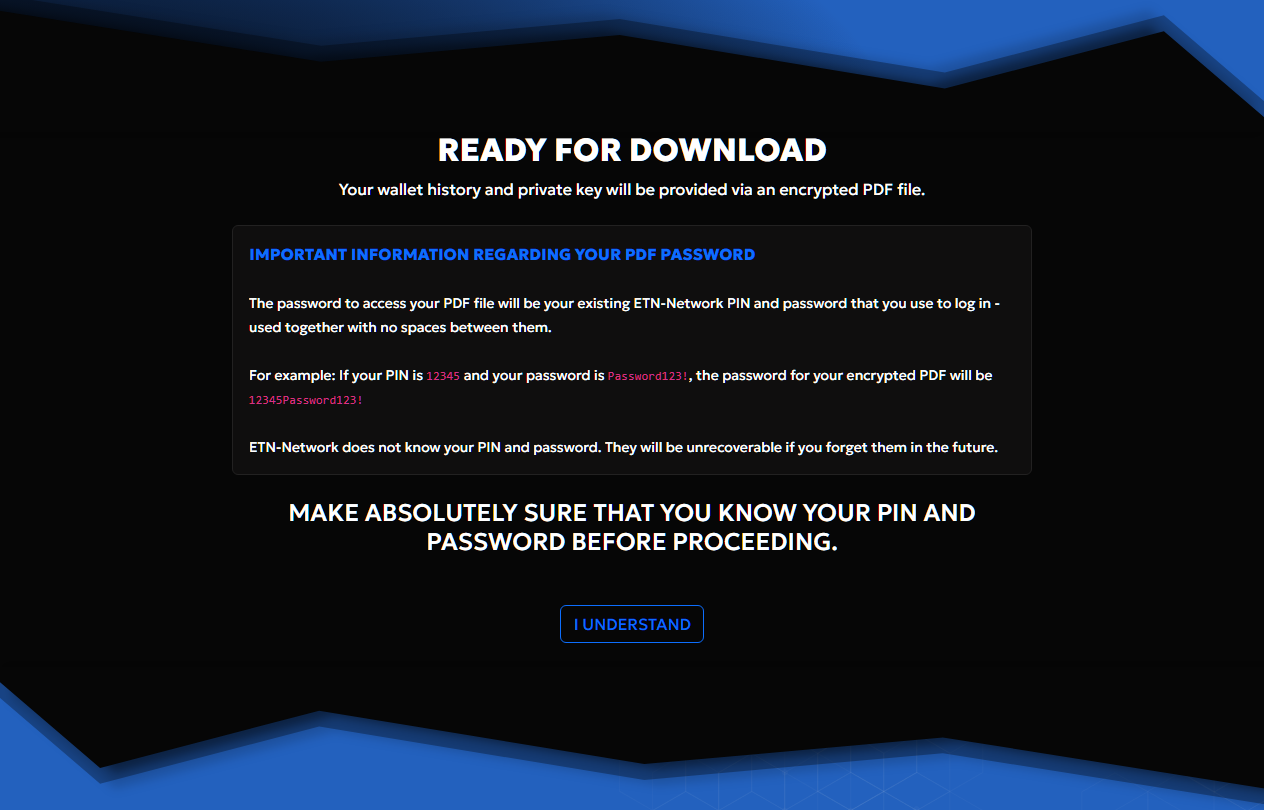
Your private key will be provided as an encrypted PDF.
Read through the explanation so that you understand how to gain access to your document once it has been downloaded. When ready, click the I UNDERSTAND button.
This is the download step.
Enter your PIN and password for verification.
If you have entered these correctly, your PDF will be downloaded to your device.
If the PIN or password is submitted too many times incorrectly, you will have to wait a short period of time before being able to try again.
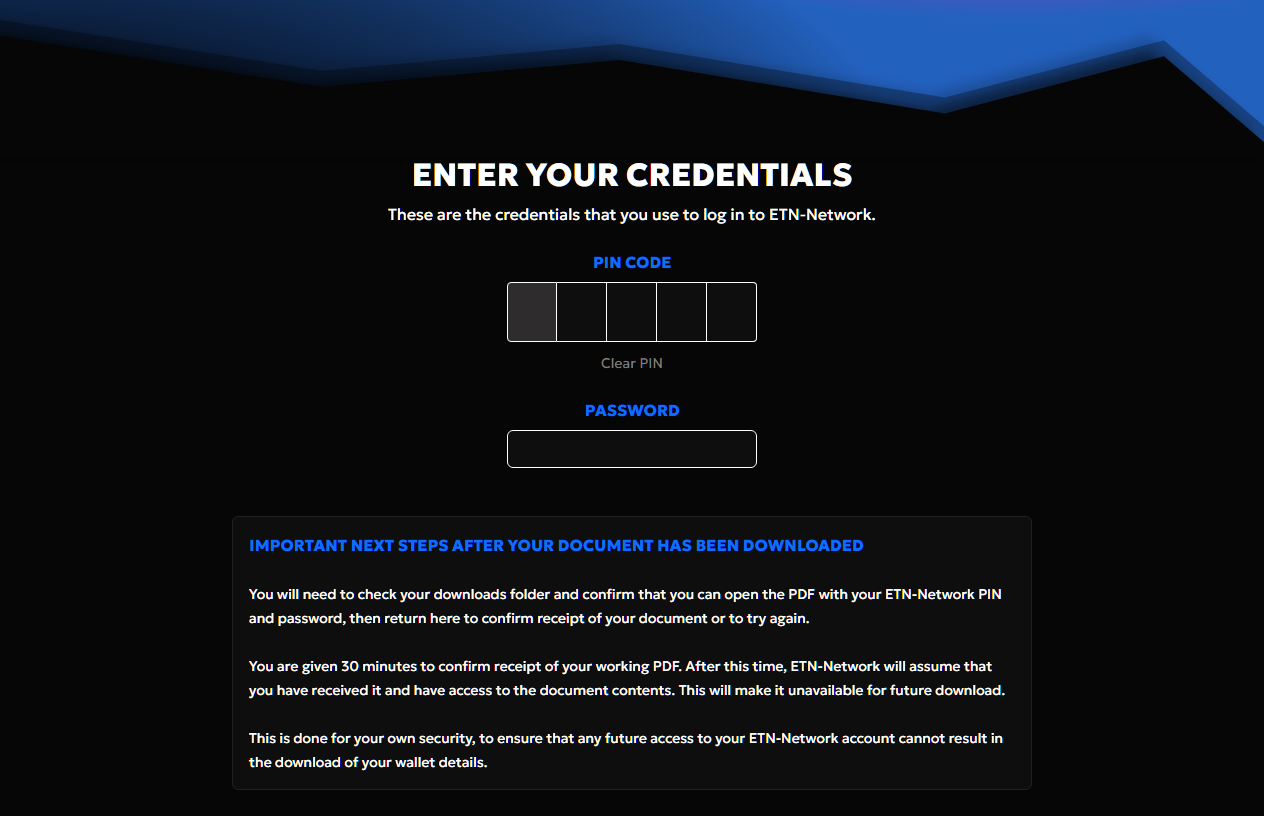
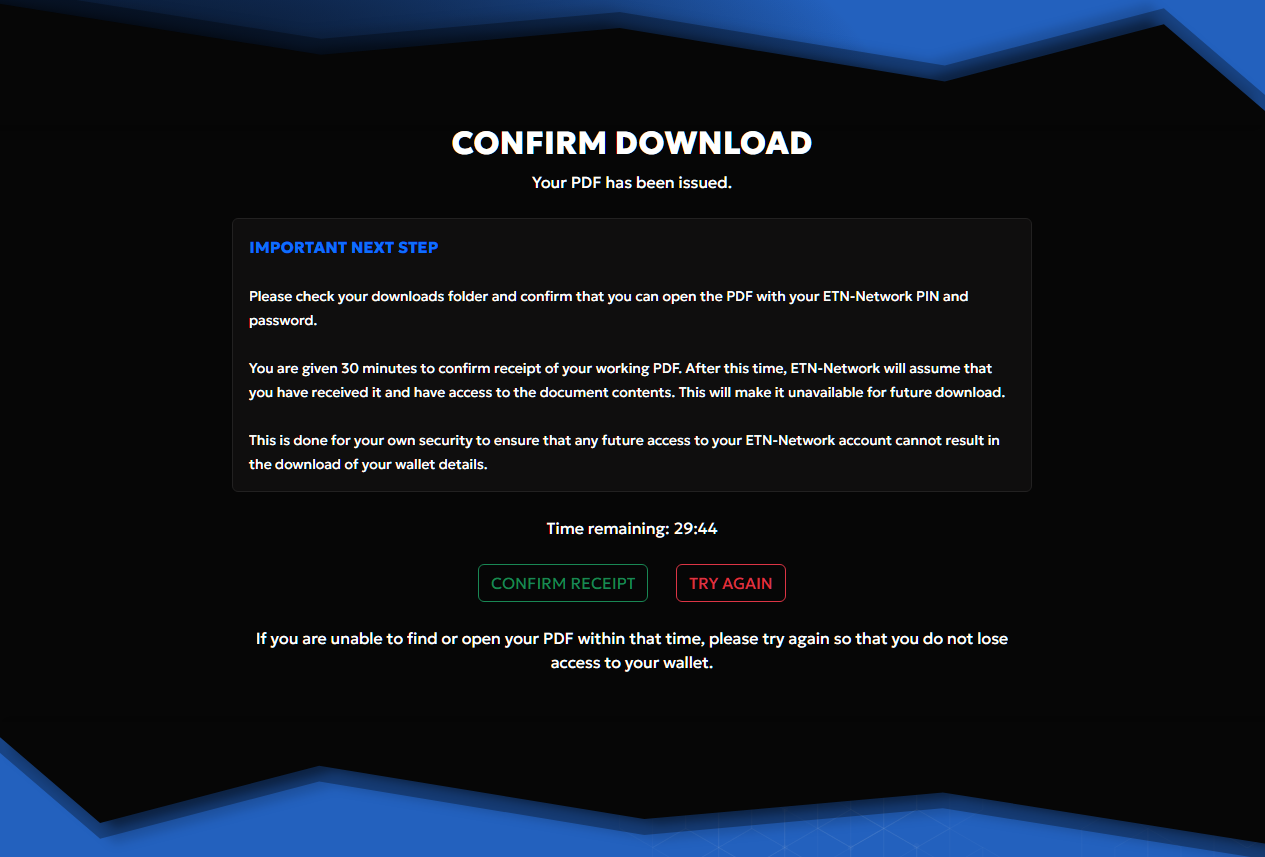
It is important you ensure that you can find the downloaded file on your device and that you know how to access it.
You will be given 30 minutes to confirm receipt of this downloaded file that contains your Private Key and that you have access to it. If this has not been confirmed after 30 minutes, we will assume that it was successful and will consider it to be confirmed.
This is done to ensure the security of your wallet by preventing any further attempt to download the private key.
If you do have difficulty locating or accessing the file within the 30-minute window, click the TRY AGAIN button. This will allow you to read through the instructions and download it again.
When you are in receipt of your document and are confident you have access to it, use the CONFIRM RECEIPT button to immediately secure your account against future access.